Download the
Paisabazaar app Today!
Paisabazaar app Today!
Get instant access to loans, credit cards, and financial tools — all in one place
Win Assured Cashback

Our Advisors are available 7 days a week, 9:30 am - 6:30 pm to assist you with the best offers or help resolve any queries.


Get instant access to loans, credit cards, and financial tools — all in one place

Scan to download on



 Personal Loan
 Business Loan
 Home Loan
 Other Loans


Our Advisors are available 7 days a week, 9:30 am - 6:30 pm to assist you with the best offers or help resolve any queries.
UIDAI’s mAadhaar app lets you carry and access your Aadhaar card on your mobile phone anytime and anywhere. Read on to know more about mAadhaar app download, its features, installation, usage and more!
600 or 750? What's your credit
score? Check for FREE.


Let’s Get Started
 +91
+91
The entered number doesn't seem to be correct
Aadhaar has been made mandatory to avail a number of services and people have to furnish it whenever required. Aadhaar has to be linked with bank accounts, mobile numbers, PAN, UAN and also for availing several subsidies under various government schemes. However, you can lose or misplace your original Aadhaar card if you carry it physically everywhere. Therefore, UIDAI came up with its official mobile application – mAadhaar, where you can add your Aadhaar card and carry it wherever you want to. The mAadhaar app can be installed both on your Android or iOS smartphone.

Get Free Credit Report with monthly updates. Check Now
mAadhaar App is the official Aadhaar mobile application launched by UIDAI in order to provide a platform for Aadhaar card holders to carry their Aadhaar with them on their smartphones. An Aadhaar card holder can add his profile to the app and access it whenever and wherever he/she wants to.
A total of five Aadhaar profiles can be created in the app. The app is well protected by the security password that the user has to enter to open the app every time. This ensures that the Aadhaar data present in the app is not accessed by anyone other than the user himself.
Read More: How To Carry Aadhaar Card On Mobile via mAadhaar App
mAadhaar app can be installed on both iOS and Android smartphones. You have to follow these simple steps for mAadhaar download and to install the mAadhaar app to your smartphone:
Step 1: Visit Google Play Store or App Store
Step 2: Select the mAadhaar app and click on the Install button
Step 3: Give required permissions to the app
Step 4: The app will be installed on your phone
Step 5: You have to set up a 4-digit numeric password for your app. This password needs to be entered whenever you login to the app. The password ensures that even if your phone is in unauthorised hands, your Aadhaar data is not compromised with.
Also Read: New Aadhaar App to Redefine How to Access & Control Digital Identity
In order to use the mAadhaar app, you will have to first add your profile in the app. It is worth noting that the profile will be added only when the mobile number mentioned in Aadhaar is the same that is being used in the smartphone. Follow these simple steps to register your profile in mAadhaar:
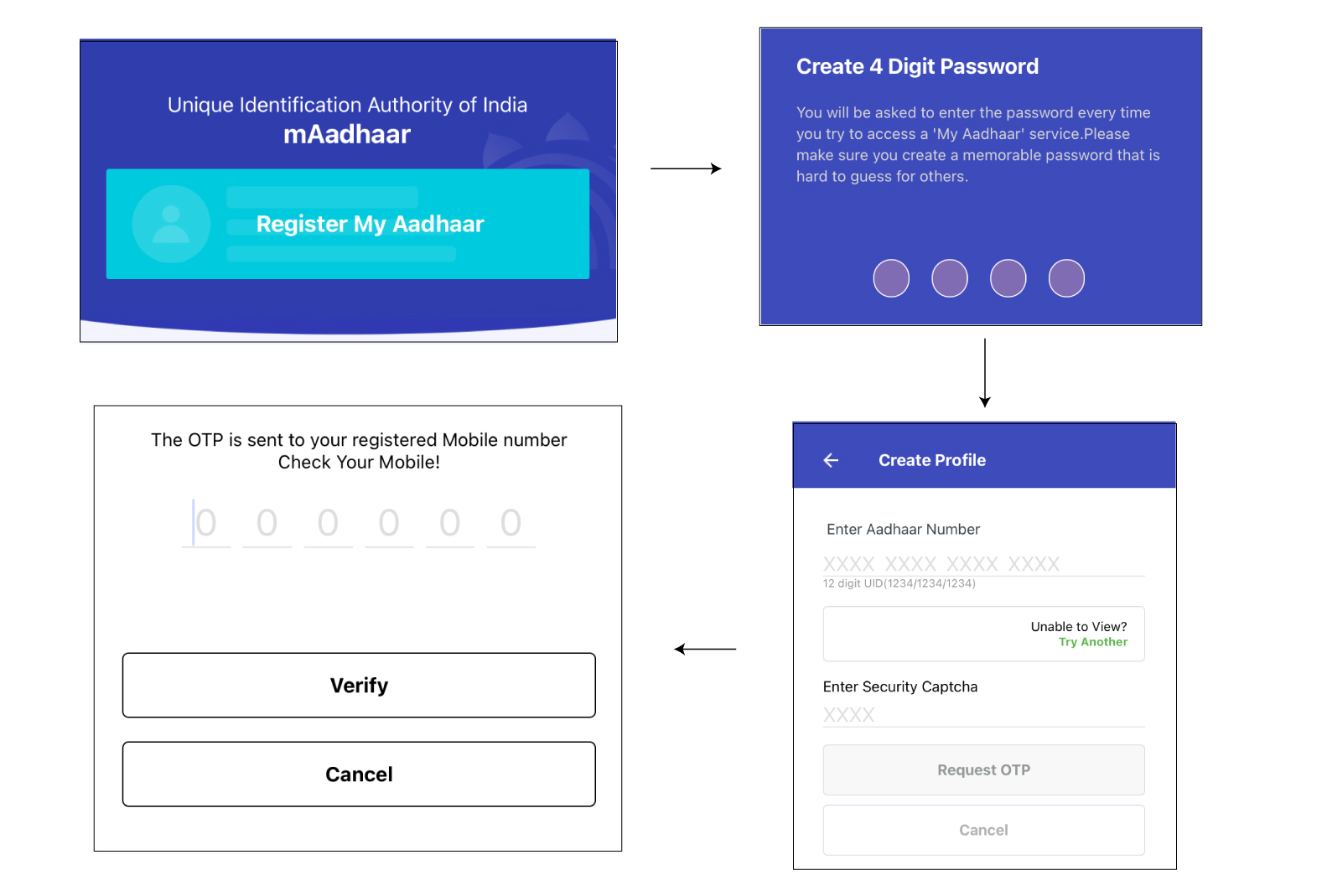
Step 1: Open the mAadhaar app
Step 2: Click on ‘Register My Aadhaar‘
Step 3: Enter 4 digit password
Step 4: Enter your Aadhaar number or simply scan the QR code on your Aadhaar card, the captcha code and click on ‘Request OTP’
Enter 5: Enter the OTP received and click on ‘Verify’ to complete the registration process.
Note: You can now add up to five profiles in your mAadhaar app as per the UIDAI. To know more, click here.
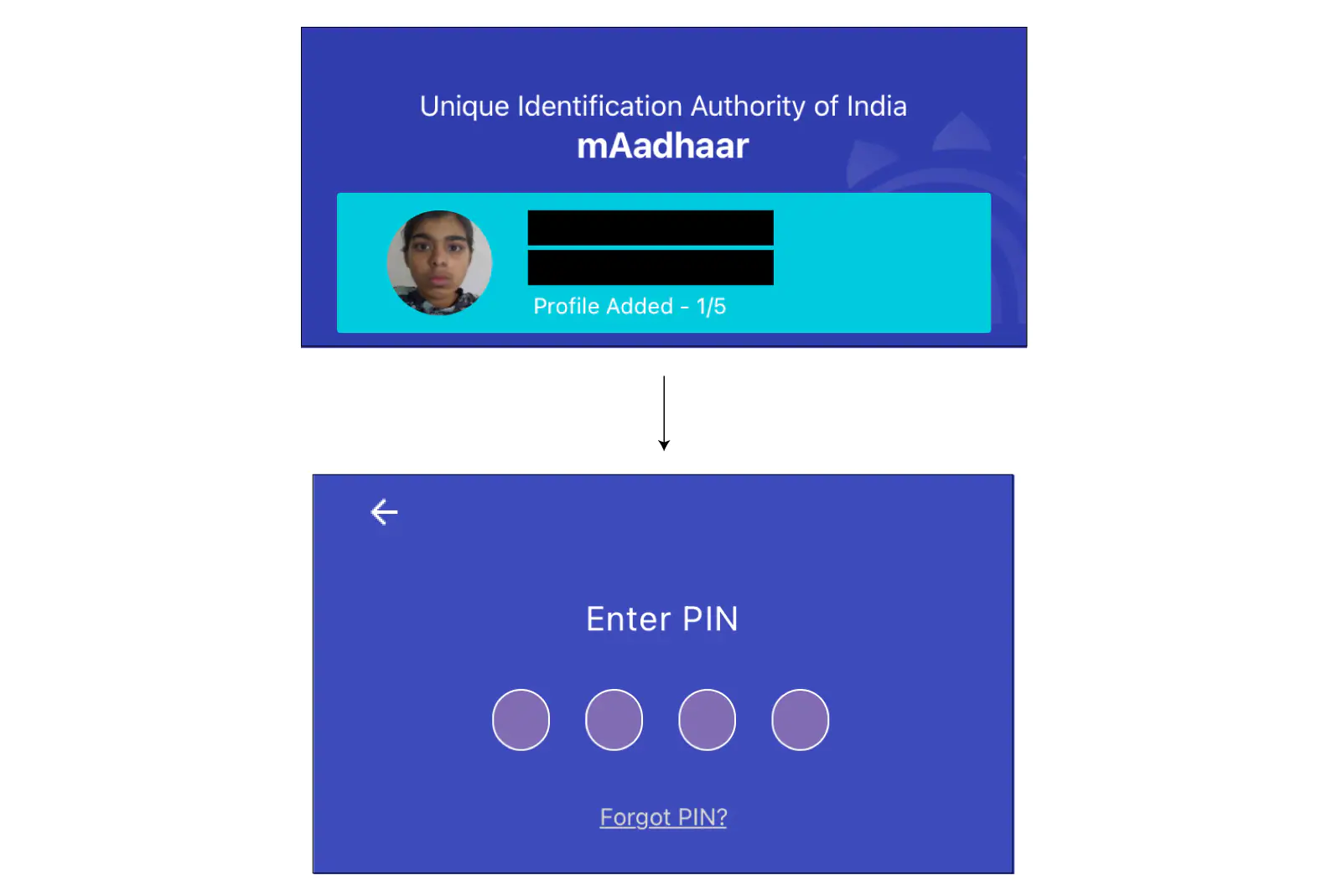
You can view your profile on the mAadhaar app by following the steps given below:
Compare and Apply for Credit Cards from Top Banks Online
Your profile in the mAadhaar app will automatically be deleted once you remove the sim of Aadhaar-linked mobile number from your smartphone. In case you are upgrading your mobile phone or switching your mobile connection, you should delete your profile and uninstall the mAadhaar app as a safety precaution before handing it to someone else. Here’s how you can delete your profile in the mAadhaar app:
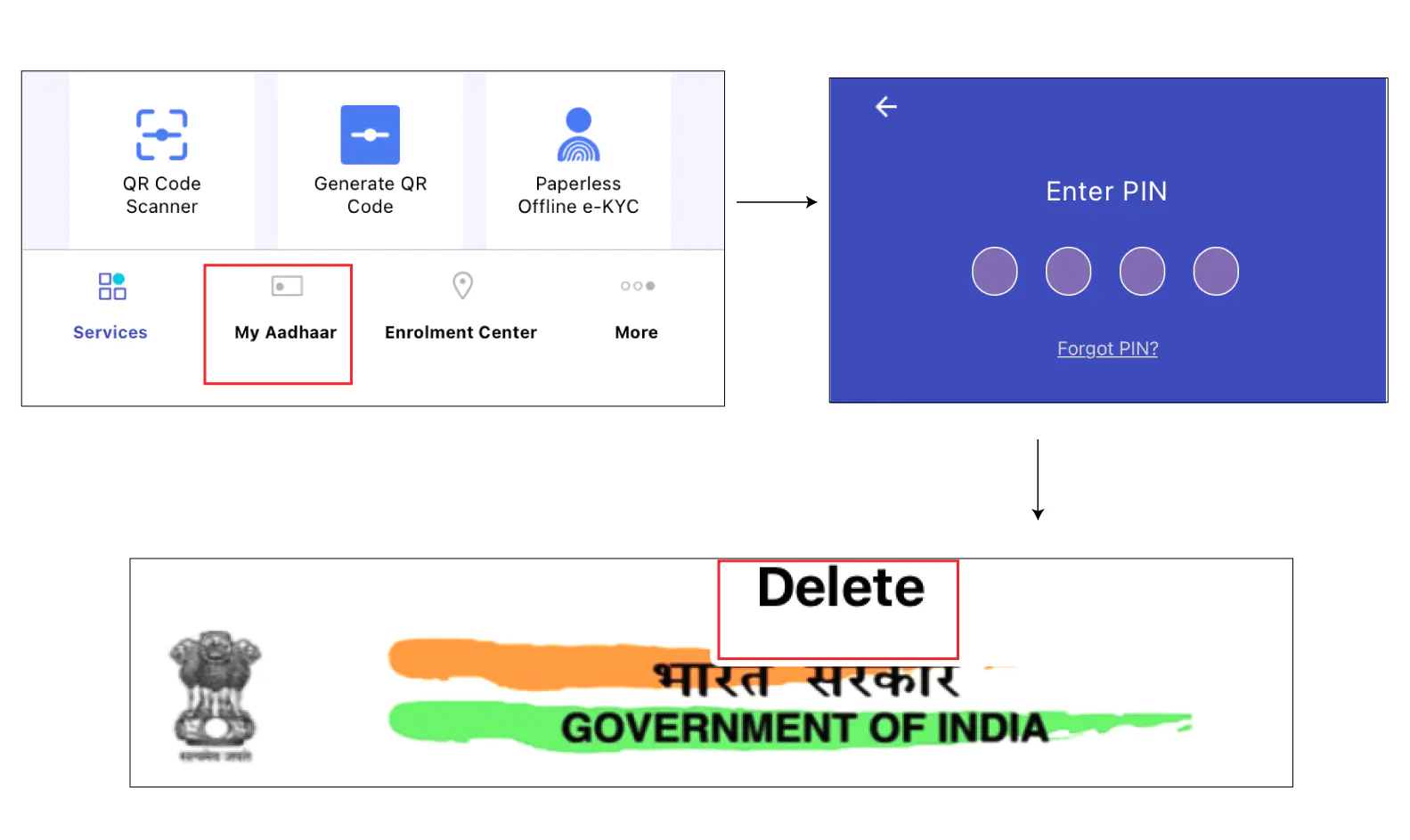 Step 1: Open the mAadhaar app
Step 2: Click on ‘My Aadhaar‘ tab
Step 3: Enter your password for mAadhaar login
Step 4: Now select the three dots on the top right corner of the app
Step 5: Select the “Delete” option to delete your profile from the mAadhaar app
You can reset the password in the mAadhaar app by following the steps given below:
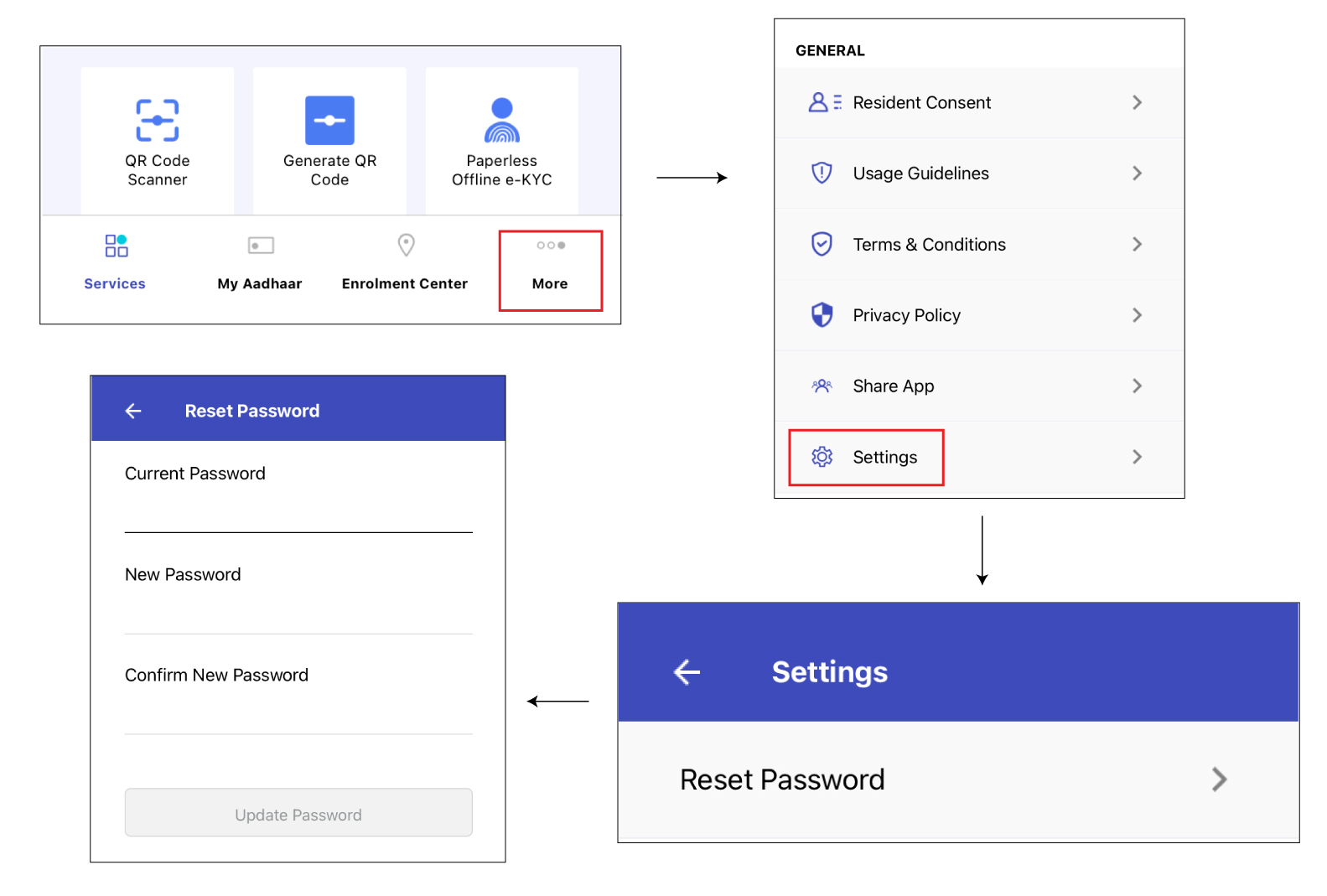 Step 1: On the home screen, click on ‘More’
Step 2: Click on ‘Settings’
Step 3: Click on ‘Reset Password’ and enter your current password/PIN
Step 4: On the next page, enter your current password, new password and confirm the new password to complete the process.
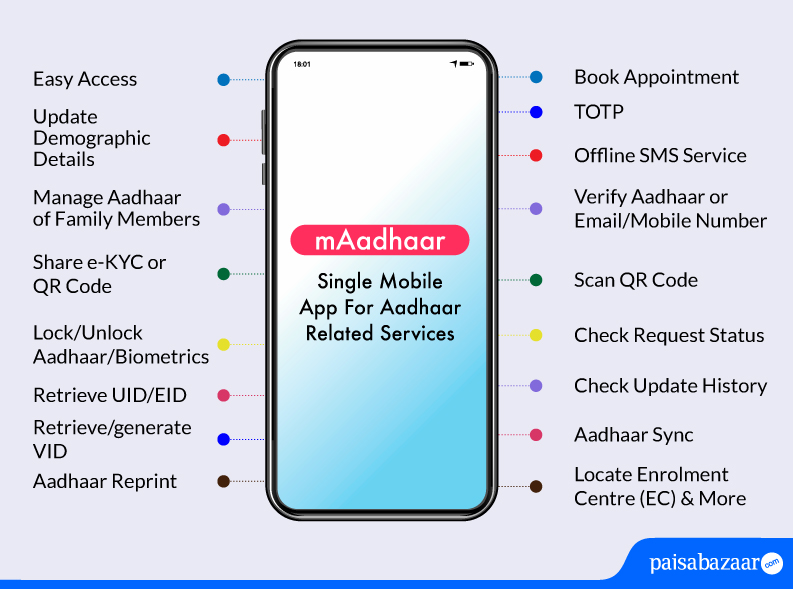
Some key services, features and advantages of the mAadhaar app are as follows:
In order to make it easier for our customers to use the mAadhaar app, we have made an extensive video on how to download and add profile to the mAadhaar app by a user. Please click here to go to the video directly.
Your Credit Score Is Now Absolutely Free Check Now
Here are a few key things you must keep in mind while using the mAadhaar app:
Ans. To share the QR Code, you need to follow the given steps:
Ans. Your profile on mAadhaar gets inactive when you change to new phone with registered mobile number because at one point of time only one Aadhaar profile can be active on one device.
Ans. No, mAadhaar does not work on rooted devices.
Ans. The mAadhaar app does not provide the save password feature, keeping the privacy and security of the Aadhaar card holders in mind. Thus, the user will need to enter the password each time they wish to access their profile on the app.
Ans. No, the mAadhaar app cannot work offline. You need to have internet connectivity to fetch data from UIDAI online portal.
Ans. mAadhaar app can be used anytime anywhere within India. Your mAadhaar profile is acceptable as a valid id proof throughout the country.
Besides other features, the app also offers residents the option to share their eKYC or QR code with service providers who seek Aadhaar verification of their customers prior to providing Aadhaar services.
Ans. No, anybody in India having a smartphone can install and use the mAadhaar app. An Aadhaar-registered mobile number is mandatory to avail Aadhaar services and Aadhaar Profile services listed under My Aadhaar. Residents can register their profile in the app installed in any smartphone, though the OTP will be sent only on their registered mobile number.
However, some services including locating an enrolment center, ordering Aadhaar reprint, scanning QR code, etc. are available to residents without an Aadhaar registered mobile number.
Ans. Once you have installed the mAadhaar app on your phone and set up the 4-digit numeric password, you usually get automatically logged in each time you open your mAadhaar app. In case, this does not happen, you can use the 4-digit numeric password to login to the mAadhaar app.
Ans. In case your mobile number is not registered with UIDAI, you will not be able to use the mAadhaar app.
Ans. To update your address in Aadhaar using mAadhaar app, you need to follow the steps given below:
Ans. Here is a step-by-step guide to generate TOTP in mAadhaar app:
Ans. mAadhaar app is UIDAI’s official mobile application that lets you add and carry your Aadhaar card on your mobile phone. It also offers several other features and benefits such as the facility to update your address in Aadhaar, generate TOTP, locate the nearest Aadhaar centre and more.
Ans. The mAadhaar app may not work on your phone due to the following reasons:
Ans. Yes, you can download masked Aadhaar using the mAadhaar app by following the steps given below: