Download the
Paisabazaar app Today!
Paisabazaar app Today!
Get instant access to loans, credit cards, and financial tools — all in one place

Win Assured Cashback

Our Advisors are available 7 days a week, 9:30 am - 6:30 pm to assist you with the best offers or help resolve any queries.


Get instant access to loans, credit cards, and financial tools — all in one place

Scan to download on


 Personal Loan
 Business Loan
 Home Loan
 Other Loans


Our Advisors are available 7 days a week, 9:30 am - 6:30 pm to assist you with the best offers or help resolve any queries.
600 or 750? What's your credit
score? Check for FREE.


Let’s Get Started
 +91
+91
The entered number doesn't seem to be correct
All banks have come up with their own versions of UPI (Unified Payment Interface) app to make fund transfer and payments easier for their customers. State Bank of India has also launched its SBI UPI app named as ‘BHIM SBI Pay’.
The SBI UPI app allows one to transfer funds within seconds from one bank account to another and make bill payments, recharges and more. The best part is that the transfer and payments are done instantly. This app is available in Google Play Store and iOS app store for you to download easily.
Unified Payments Interface (UPI) is a payment system where you can transfer funds between two bank accounts through your mobile phone. You do not need to enter complete account details of the beneficiary. You can just enter their registered mobile number, Aadhaar number or Virtual Payment Address (VPA) to transfer funds.
SBI has launched its UPI app by the name ‘BHIM SBI Pay’. One can use this app to transfer funds and make bill payments instantly. ‘BHIM SBI Pay’ app can be used by non-SBI account holders as well. The only condition is that you need to have at least one bank account and your mobile number has to be linked to that account. The debit card should also be linked to the bank account.

Get Free Credit Report with monthly updates. Check Now
Below-mentioned are the features of BHIM SBI Pay app:
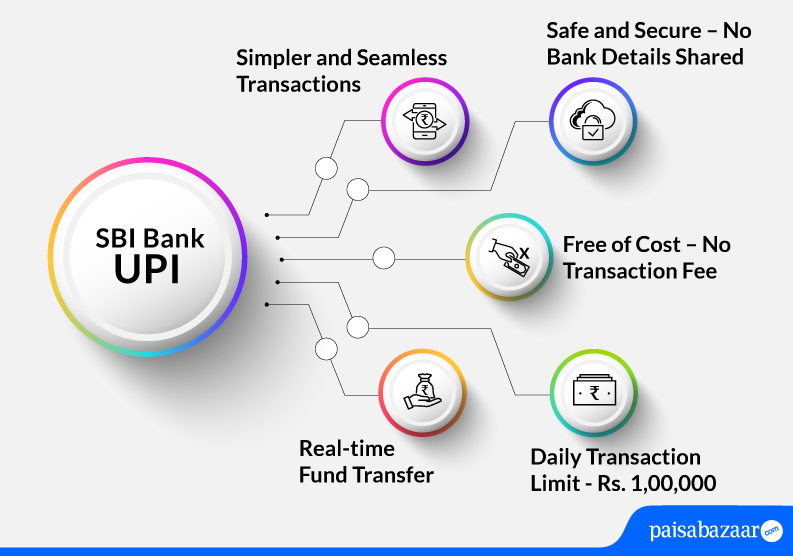
The receiver does not need to disclose his/her account number, IFSC code or any other banking details
Once you have downloaded the app on your smartphone, you need to do a one-time registration. Prior to registration, you should have an active bank account that is linked with your Aadhaar and the same mobile number should be registered with the bank. Follow the steps mentioned below to register and make your account in BHIM SBI Pay:
Follow the steps mentioned below to download SBI Pay:
Step 1: Go to Google Play Store or App Store
Step 2: Search for SBI Pay App
Step 3: Click on it and install the App
To register SBI Pay, follow the steps mentioned below:
Step 1: Launch the app once downloaded
Step 2: SMS-based mobile verification will be carried out upon start-up
Step 3: Choose a preferred VPA
Step 4: Enter name and email ID
Step 5: You need to answer the security question
Step 6: Confirm details and click on the ‘Next’ button. The details will be submitted to the UPI server for registration after verification of details.
Step 7: Proceed to select the bank account and click on the ‘Register’ button
In order to create a VPA, you need to first add a bank account. So keep the bank details handy for you to use.
Get FREE Credit Report from Multiple Credit Bureaus Check Now
Once your registration is complete, you will need an MPIN to make a payment. You can set the MPIN using your debit card details.
Step1: Log in to the SBI UPI app and go to the management page
Step 2: Select the account for which you want to set mPIN
Step 3: Type the last 6 digits of your debit card and feed in the expiry date
Step 4: You will get an OTP on your registered mobile number
Step 5: Enter the OTP in the box and then create an mPIN
It is very simple to transfer funds using the SBI app. Here are the steps that you need to follow:
Step 1: Open the UPI app and enter the 6-digit login password
Step 2: Click on the ‘payment’ section
Step 3: Select the account from the list of drop-down available. Remember you can use this app to transfer funds from multiple accounts
Step 4: Select the payee. You can either type the VPA or the bank details. In case you are typing the bank details, then ensure that you have all the requisite details like IFSC code, bank account number, branch name and address
Step 5: In case you feed in the VPA, the app will also show the actual name of the person for cross verification
Step 6: Enter amount and remarks and click on pay
Step 7: On the next page, enter the mPIN
Step 8: If the MPIN is correct, funds will be transferred
It is very easy and simple and can be done anywhere at any time. Almost all UPI apps have a similar mechanism.
You can also request money from someone using the SBI UPI app. It is a unique feature available with UPI apps. The only thing that you need to share with them is your VPA which the sender can use to transfer the funds into your SBI savings account.
Step 1: Set a bank account as default receiver so that all funds credited to the BHIM SBI PAY is credited into that account
Step 2: For the collection of funds, you need to log on to the App and click on the Collect tab
Step 3: You can feed in the VPA of the person from whom you want to request money after using the MPIN and enter amount and remarks (if any)
Step 4: Once the request is accepted by the sender you will get a notification
Step 5: You can also put a time limit on the transaction in terms of hours and days to ease tracking of the same
Daily transaction limit through SBI UPI is Rs. 1,00,000. Accountholders can transfer Rs. 1 lakh in one transaction or multiple transactions as well. One can do a maximum of 20 transactions within 24 hours. However, if the accountholder uses third-party UPI apps, he may be able to do only 10 transactions in 24 hours.
A Good Credit Score can help in getting Loan Approvals Easily Check Now
Currently, SBI does not levy any charges on UPI transactions. This facility is free of cost.
Customers can follow the below-mentioned steps to reset their SBI UPI in case they have forgotten their SBI UPI PIN. It is to be noted that customers will require debit card details to reset their SBI UPI PIN. Also, customers can follow the steps mentioned below to change their SBI UPI PIN:
Step 1: Login to SBI YONO app and enter your User ID
Step 2: You will be directed to YONO App’s dashboard
Step 3: Tap on YONO Pay and choose the option ‘BHIM UPI’
Step 4: You will be taken to another BHIM UPI dashboard in the app, there click on ‘Manage’ option
Step 5: In this step, you will see the linked to for your UPI transactions, tap on that account
Step 6: As soon as you tap, you will see options to reset PIN, change PIN and view balance
Step 7: Click on ‘Reset PIN’. As you tap, you will see your card details on the screen
Step 8: Enter your debit card details as asked and click on ‘Next’
Step 9: you will receive an OTP on your registered mobile number, enter the OTP, set your UPI PIN of 6-digits, and submit the request
Step 10: Re-enter the UPI PIN that you have created and tap on “OK”
Step 11: A message confirming “Your UPI PIN has been set” will appear on your screen.
Customers shall follow this process if they want to change their existing SBI UPI PIN to a new UPI PIN:
Step 1: Go to ‘Manage UPI’ dashboard in your SBI mobile banking app and tap on your account
Step 2: Out of the provided options, choose “Change PIN”
Step 3: You will be directed to the next page where you will have to input your current UPI PIN and new UPI PIN that you want to change to. Re-enter the set UPI PIN to confirm and tap on “OK”
Step 4: At this step, your SBI UPI PIN will be changed and a message confirming the change in your UPI PIN will appear on your screen
To create UPI ID in SBI YONO App, customers can follow the below-mentioned steps:
Step 1: Login to your SBI YONO App and tap on YONO Pay on the dashboard
Step 2: Click on BHIM UPI and proceed further and a new page will appear on your screen
Step 3: Click on ‘Create/Retrieve UPI Profile. Here you can create your new UPI ID
Step 4: On the next page, select the number that is registered with your bank account. As soon as you select your registered mobile number, an OTP will be sent to you for verification
Step 5: A new page will appear on your screen with a list of banks active on UPI, select the bank where you have your account (Users can also create their UPI ID of other bank account on SBI YONO app)
Step 6: Select ‘State Bank of India’ out of all the options provided. You will be directed to a new page where you will be asked to create your SBI UPI ID or you can also choose from the suggested UPI IDs on the page
Step 7: Select a security question and provide an answer of the same. Select your primary account for UPI ID if you have multiple accounts with the bank and click on ‘Next’
Step 8: As you click ‘Next’, your SBI UPI ID will be created and you will receive a message that will state that you have successfully created your UPI ID
Checking Credit Report monthly has no impact on Credit Score Check Now
As per the bank, the limit of doing UPI transactions in a day is Rs. 1,00,000. However, customers can modify the limit as they want. The below-mentioned process explains how to set SBI UPI limit in SBI YONO app:
Step 1: Login to SBI YONO app and click on UPI option on the dashboard
Step 2: Tap on set UPI transaction limit on the next page
Step 3: Add new UPI transaction limit and confirm the new UPI transaction limit that you have seeded
Step 4: Click on ‘Submit’ and on the next page click on ‘Confirm’
Step 5: You will receive an OTP on your registered mobile number, enter the OTP and click on ‘Submit’
Step 6: Your UPI transaction limit request will be set successfully
Q. Can I link my mobile wallet to BHIM SBI Pay?
Ans. No, you cannot link your mobile wallet to BHIM SBI Pay. Only bank accounts can be linked to the same.
Q. Can I use BHIM SBI Pay on my Android?
Ans. Yes, the UPI app of SBI is available for Android as well as iOS platforms.
Q. How can I file a complaint in case of any dispute in a transaction?
Ans. Follow the steps mentioned below to file a complaint in case of any dispute in a transaction:
Step 1: You need to log in to the SBI Pay App
Step 2: Go to ‘My UPI Transactions’ section
Step 3: Tap on the ‘Raise Query’ option
Step 4: Choose the type query. Once done, enter the remark
Step 5: Verify details and click on the ‘Submit’ button
Q. What are the various channels that can be used to transfer money through BHIM SBI Pay?
Ans. Following are the various channels that can be used to transfer money through BHIM SBI Pay:
Q. Can I transfer funds to foreign countries using SBI Pay App?
Ans. No, as of now, you cannot transfer funds to foreign countries using SBI Pay App.
Q. Can an individual holding a bank account with another bank use SBI Pay?
Ans. Yes, an individual holding a bank account with another bank can use BHIM SBI Pay app as well.
Q. What is the SBI UPI customer care number?
Ans. One can contact the SBI customer care to raise an issue related to UPI transactions. These toll-free numbers are 1800 1234, 1800 11 2211, 1800 425 3800,1800 2100 or 080-26599990 (paid). Know more about SBI Customer Care.
Q. Can I use more than one UPI App on the same mobile?
Ans. Yes, you can use more than one UPI applications on your mobile phone and link the same as well as different accounts in both the UPI apps.
Q. What happens when my BHIM SBI Pay transaction limit is reached?
Ans. Once you reach your BHIM SBI Pay transaction limit, you will have to wait for 24 hours to transact again.
Q. What is SBI BHIM Aadhaar Pay?
Ans. BHIM Aadhaar SBI is a payment solution that lets merchants accept payments using customer’s Aadhaar-linked bank accounts.
BHIM-Aadhaar-SBI helps individuals in accepting payments seamlessly from customers having bank account linked with Aadhaar just by using an Android smartphone and fingerprint reader for authentication.
Q. How to check SBI UPI ID in YONO app?
Ans. Open SBI YONO app > Login with MPIN > Click on YONO Pay on the dashboard > Click on BHIM UPI > Click on Generate QR > UPI ID will appear on the next screen