Download the
Paisabazaar app Today!
Paisabazaar app Today!
Get instant access to loans, credit cards, and financial tools — all in one place

Win Assured Cashback

Our Advisors are available 7 days a week, 9:30 am - 6:30 pm to assist you with the best offers or help resolve any queries.


Get instant access to loans, credit cards, and financial tools — all in one place

Scan to download on



 Personal Loan
 Business Loan
 Home Loan
 Other Loans


Our Advisors are available 7 days a week, 9:30 am - 6:30 pm to assist you with the best offers or help resolve any queries.
The Income Tax Department has changed the design of the PAN card. It has made a few additions to it to make it more user-friendly and secure. The IT Department has started providing new PAN cards post July 7, 2018. It is worth noting that PAN cards issued prior to the aforementioned date will also remain valid. However, if one wants to issue the new PAN card, he will have to submit an application for reprinting the PAN card online.

Get Free Credit Report with monthly updates. Check Now
The Income Tax Department has made the following additions to the PAN card:
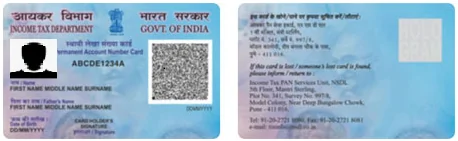
Enhanced QR code contains the photograph and signature of the PAN cardholder in addition to the existing details such as your PAN, name, father’s/mother’s name and date of birth (date of incorporation/ formation in case of non-individuals). These details are digitally signed and are encoded in the new Enhanced QR code.
The enhanced QR code can be read by a specific mobile application (Enhanced PAN QR Code Reader). It is recommended to scan the code using an auto-focus camera having the resolution of 12-megapixels and above.
The enhanced QR code is provided in the e-Permanent Account Number (e-PAN) as well.
The position of various details has been reset in the new PAN card design. Following alterations have been made in the new PAN card:
The PAN card is also available in the DigiLocker app. One can get the PAN card issued in the DigiLocker app from the Income Tax Department’s PAN verification records.
The PAN in DigiLocker contains the user’s name, gender, date of birth and the PAN. It also contains the QR code which can be used to verify the details in the PAN card. A “DigiLocker Verified” logo is also mentioned in your PAN.
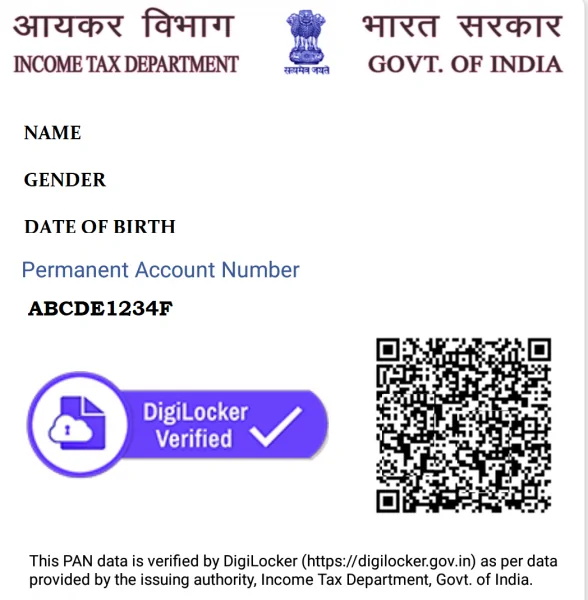
You can get the PAN card in your DigiLocker account by following the steps mentioned below:
e-PAN is a digitally signed PAN card issued in electronic format by the Income Tax Department using Aadhaar e-KYC. As shown in the below image, e-PAN has the following components:
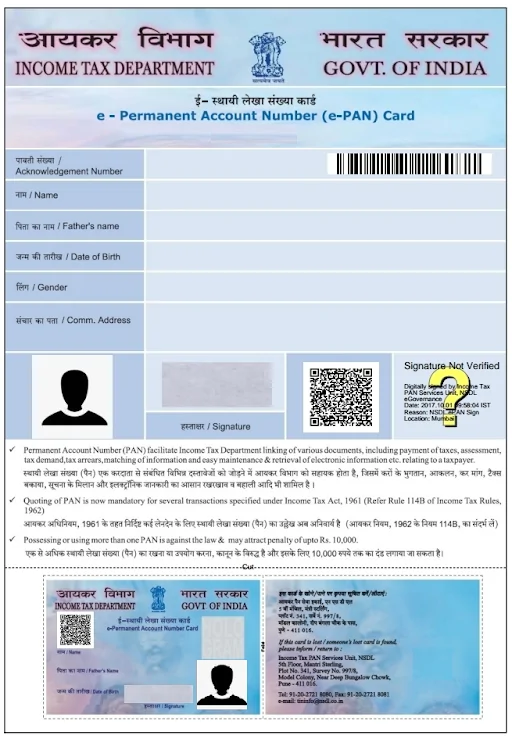
Step 1: Open the PDF file in PDF Converter Professional
Step 2: Left-click on the Digital Signature field
Step 3: Click on the ‘Verify Signature’ option
Step 4: Click on the ‘Properties’ button
Step 5: Click on the ‘Verify Identity’ option
Step 6: Now, add the ‘Contact information for certificate owner’ option
Step 7: Click on the ‘Add to List’ option
Step 8: Click on the ‘Close’ option
Step 9: Click on the ‘Verify Signature’ option
Step 10: The validity status will reflect as ‘Signature is valid’
Step 11: Click on the ‘Close’ button
Step 12: Digital Signature will now appear as a green check mark and ‘Signature Valid’