Download AppWin Assured Cashback
Paisabazaar Logo - Compare loans and credit cards

SBI Credit Card Login

cc-freeAirport Lounge Access
with every credit card
cc-illustration
Compare 100+ Credit Cards

Choose a Card Matching
Your Lifestyle

How to Login to SBI Credit Card Account?

Follow the steps given below to login to SBI Credit Card account:

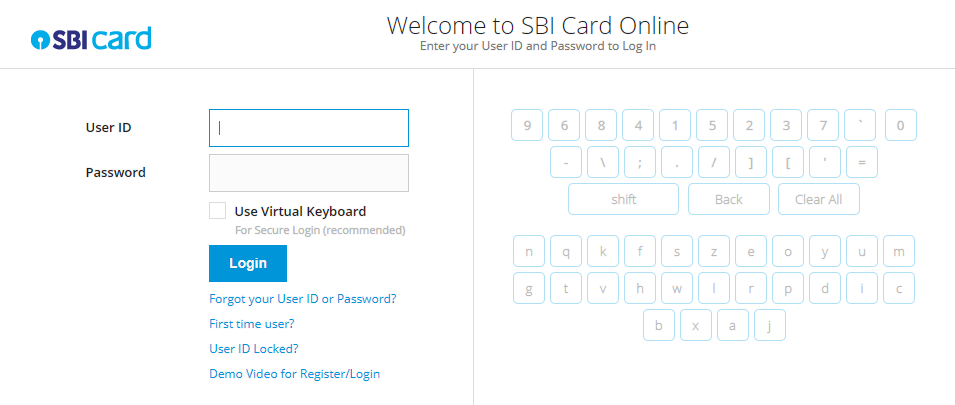
    • Visit the SBI credit card login page

      SBI Credit Card Login

  • Enter the User ID and Password
  • Click on the ‘Login’ button to login to your account

Users can now view their card statements, transaction history, reset PIN for the card, book services, etc.

SBI Credit Card Net Banking Facilities

SBI Net Banking facility lets users access a plethora of products and services, some of which are highlighted below:

  • Customers can manage their SBI account from anywhere across the world at any time of the day. They can use netbanking service to manage their account- view SBI card statements , transaction history, unbilled transactions or analyse their expenses with Spend Analyser, etc.
  • SBI netbanking facility allows to easily pay off credit card bills and other utility bills
  • Booking services like Balance Transfer, Flexipay, Encash, Balance Transfer on EMI, Easy Money, etc. at low rate of interests
  • SBI Credit Card Net Banking allows users to instantly reset their card’s PIN, block a lost/stolen card, request for duplicate statements, request for an add-on card, redeem accumulated reward points against gifts and vouchers, etc.
  • Getting the latest offers and deals on SBI credit card online account

How to Register for SBI Credit Card Net Banking?

It is quite easy to use SBI credit card for Net banking facility. Follow the steps given below to complete the SBI credit card netbanking registration process:

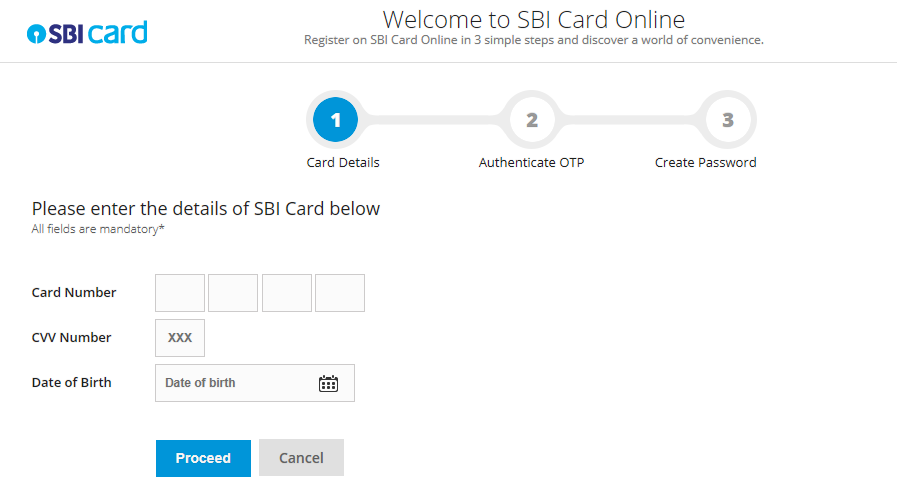
  • Visit SBI Card website and then click on ‘ Register Now

    Register SBI Credit Card Login

  • Provide the credit card number, CVV (3-digit number present on the backside of the card) and Date of Birth
  • Provide OTP (One Time Password) received on the registered mobile number
  • Enter a unique user ID and password for the SBI credit card. Re-enter the new password and press the ‘ Confirm ’ button
  • On successful registration, the username and password are generated. Henceforth, users need to use this new unique User ID and password for SBI credit card login

How to Change SBI Credit Card Net Banking Password?

Follow the below-mentioned steps to change SBI credit card netbanking password:

  • Go to SBI Card website and click on the link ‘ Forgot your User ID or Password?
  • In the next page, provide the card number, CVV number and Date of Birth
  • Click on ‘ Proceed ’ after which an OTP is sent to the registered mobile number
  • Enter that OTP in the next screen
  • Provide a new password. Verify the same again and select ‘ Confirm ’ to validate the changes

The SBI credit card netbanking password will be altered successfully.

How to Make SBI Credit Card Bill Payment through Netbanking

There are multiple options available online to clear your SBI credit card bills – NEFT Payment, Paynet-Pay Online, Visa Credit Card Pay, Online SBI, Electronic Bill Payment, SBI Auto Debit, Debit Card, Pay via UPI, Pay via YONO, Pay via Mobile App.

SBI Credit Card Bill Payment through Paynet-Pay Online

Follow the steps mentioned below for SBI credit card bill payment through Paynet-Pay Online option:

  • Login to SBI Card website
  • Select ’Pay Now’ on the Dashboard page
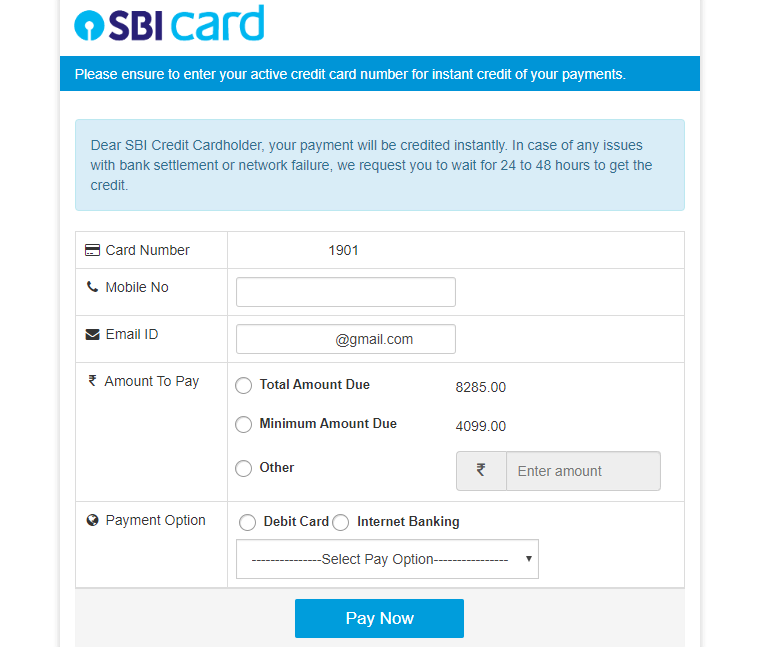
    SBI credit card bill payment Paynet

  • Enter the required amount
  • Choose the mode of payment and bank name from the drop-down menu
  • Validate the details and then securely authorise the payment via the chosen bank’s payment interface
  • The account will get debited online and a Transaction Reference Number will be generated containing the transaction details. This number will be sent to your registered mobile number and e-mail as well

SBI Credit Card Bill Payment through Online SBI Portal

You can clear your SBI credit card bills from your SBI account via Online SBI.  Before paying the bill for the first time, you will have to add SBI as the biller by following the steps mentioned below:

  • Login to SBI website by clicking here
  • Select ‘Manage Biller‘ option in the ‘Bill Payments’ section
  • Choose the Add option in this section and go for ‘All India Billers‘. Select ‘SBI Cards and Payment Services Pvt. Ltd.’ as the biller
  • Provide the name and SBI credit card number to register. Click on the ‘Submit’ button
  • Enter the OTP received on your registered mobile number and confirm the biller details.

The card has now been successfully registered on the website. You can now follow these steps to make the payment:

  • Select ‘View/Pay Bills’ section and then choose ‘Without Bills’ option
  • Choose the SBI card as the biller and click on ‘Pay’ option.
  • Select the SBI account number from which you wish to make the payment
  • Enter the payment amount and click on the ‘Pay Now’ option. Confirm the transaction details and validate the same by clicking on the ‘Submit’ button.
  • The payment will be reflected instantly in the SBI credit card account

How to Reset SBI Credit Card PIN

Follow the below steps to reset PIN online for your SBI Credit Card:

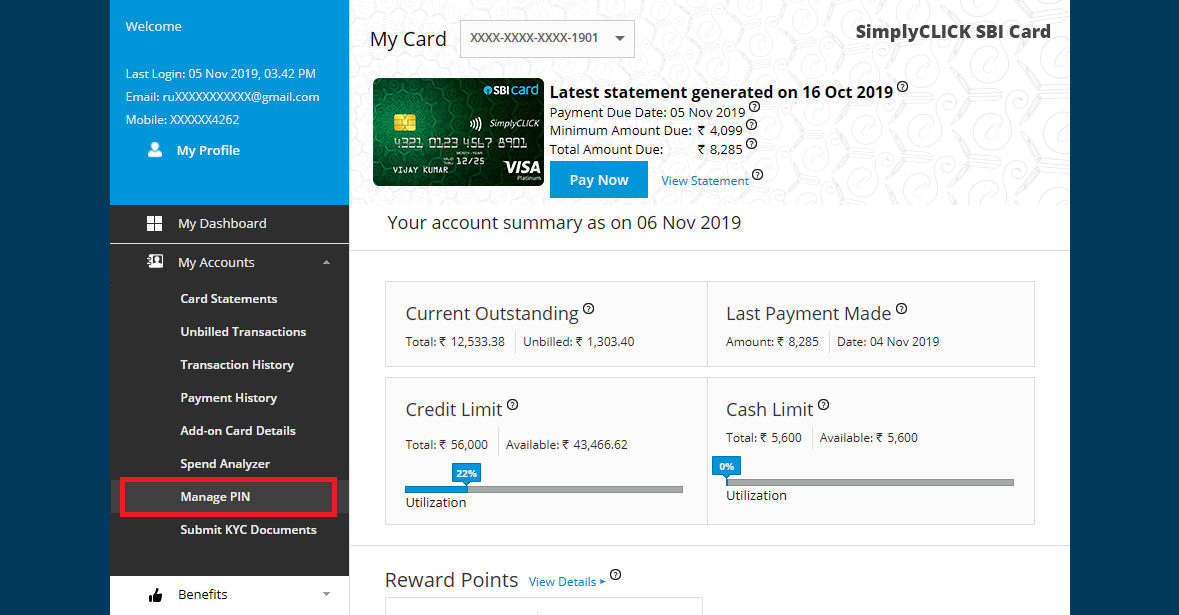
  • Go to SBI Card website and login to the SBI Card online account
  • Select ‘ My Account ’ from the left-hand side menu
  • Choose ‘ Manage PIN ’ option

    PIN Change Online SBI Credit Card Login

  • Select the credit card for which the PIN has to be changed from the dropdown menu
  • Provide the OTP sent to your registered mobile number
  • Enter the new credit card PIN
  • Click on ‘ Submit
  • The PIN will be successfully reset

Reset SBI Credit Card PIN through IVR

  • You can also call on 3902 02 02 (prefix local STD code) or 1860 180 1290 to regenerate the SBI credit card PIN
  • Select option 6 and enter card details and date of birth
  • Validate with OTP sent on the registered mobile number or e-mail and reset your SBI PIN

For Further Support: Contact SBI Customer Care Center

How to Check SBI Credit Card Statement

Customers can opt for any of the three methods to check their SBI Credit Card statement:

  • E-statements are sent monthly on the registered e-mail ID
  • Monthly statements are sent to the registered mailing address
  • Customers can check their statements through the internet banking portal as well from the ‘My Accounts’ section

How to Apply for a Credit Card Online?

Step 1: Enter your mobile number

Step 2: Enter OTP to verify your mobile number

Step 3: Explore pre-qualified credit card offers from top issuers

Step 4: Select your preferred card and complete the digital application

FAQs

Are SBI Card and SBI Netbanking accounts the same?

No, SBI credit card account is different from the SBI netbanking account.

Can I do SBI credit card login using SBI netbanking details?

SBI credit card login details are different from SBI netbanking details. So you will have to register for SBI card account using your credit card details to use the online services.

How can one know about the online transactions on their SBI card?

You can log in to the SBI Card account and select ‘My Accounts’ on the left-hand side • Select the card for which you want to check transaction details • Transaction details will be provided under ‘Unbilled Transactions’ and ‘Transaction History’ • You can also use the Ask ILA option to get the transaction details

What to do when I forget the user ID for SBI Card online account. How can one recover the same?

Open SBI Card and select ‘Forgot User ID/Password’ link • Provide the SBI credit card number, CVV number and date of birth • Enter the OTP that has been sent to the registered mobile number • This will help in retrieving the user ID for that account • If you remember your password, log in using the same or you can ‘reset your password’ too via the same process

How can I check the credit card outstanding amount and available credit limit via net banking facility?

Once you have logged in to the SBI card account, you can now get all the details under “Current Outstanding” option in the “Account Summary” section. You can also log in and use Ask ILA option for the same.

How can one apply for an Add-on card?

Simply log in to SBI card online account with the credentials and apply online for the add-on card • You can also use the services of Ask ILA for the same • You can also call the helpline number and request for assistance or download the Add-on Card form and submit the duly filled form in the bank

Paisabazaar is a loan aggregator and is authorized to provide services on behalf of its partners

*Applicable for selected customers

Scroll to top