
Note: The information on this page may not be updated. For latest updates, click here .
UPDATE: As a part of the COVID-19 relief package announced on 13th May’20, the last date to file GST returns has been extended to the end of June, 2020.
 Win Assured Cashback
Get up to ₹1 Cr starting at 13%
15.7L Reviews

Best Loan Offers
Curated Offers from 20+ Lenders

Unsecured Loan
Term Loan & OD Facilities Available

Expert Advice
Guidance & Assistance

Top Up Facility
Loan to Get Additional Funds

Best Loan Offers
Curated Offers from 20+ Lenders

Unsecured Loan
Term Loan & OD Facilities Available

Expert Advice
Guidance & Assistance

Top Up Facility
Loan to Get Additional Funds

Note: The information on this page may not be updated. For latest updates, click here .
UPDATE: As a part of the COVID-19 relief package announced on 13th May’20, the last date to file GST returns has been extended to the end of June, 2020.
In order to file your GST Returns, you need to first complete GST Registration . Once you register yourself, login to the GST portal and file the returns. Read here to know the step-by-step procedure for GST login .
After logging into the GST portal, you will see the following web page showing the GST dashboard.
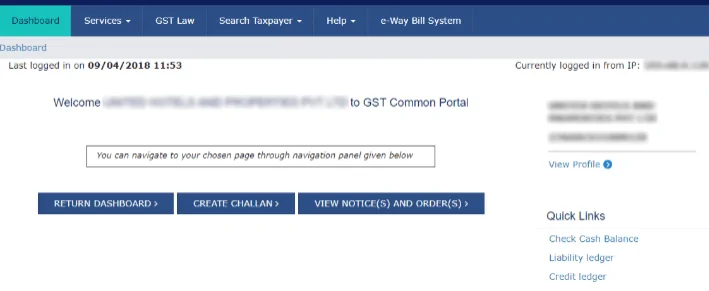
Key details that you can view on this page include name of the GST registered individual/business, GST number, etc.
| GST Expert Assistance by Paisabazaar
Finding it difficult to avail online services related to GST? Paisabazaar’s offline stores provide expert assistance for GST services. Get step-by-step expert guidance for GST registration, GST filing and GST certificate. Once your GST is set up, you can apply for a business loan to scale your business through Paisabazaar. |
Step 1: Once, you login the GST portal, click “Services” tab on the Dashboard.
Step 2: In the “Services” menu, click “Returns Dashboard”

Step 3: Select the “Financial Year”, the “Return Filing Period” and click “Search”.

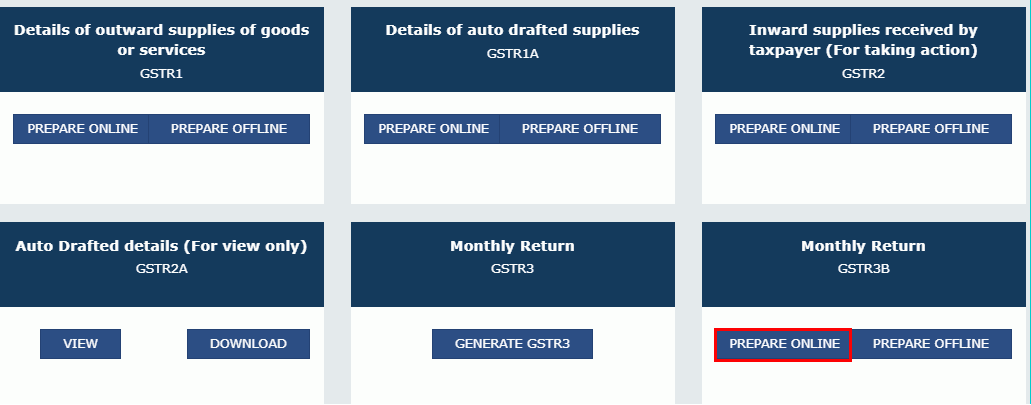
Step 4: Separate tiles of all the GST returns that can be filed are displayed. Select the GST return you want to file by clicking on either the “Prepare Online” or “Prepare Offline” button in the corresponding tile.
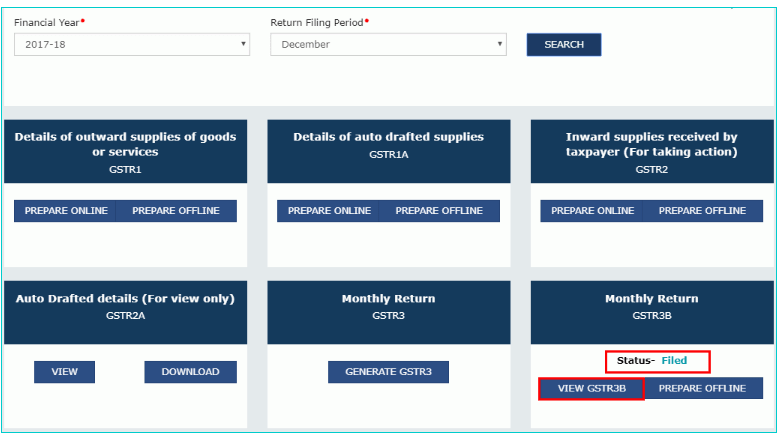
Step 5: You can file your GST returns in 2 ways, either online by clicking the “Prepare Online” button or using GST offline tools utility by clicking the “Prepare Offline” button.
Step 6: Enter the required information in the online GSTR form or the GSTR offline tool. Please note that you need to upload the completely filled offline utility form by clicking on the “Prepare Offline” button.
Click here to know about the various GST offline tools in detail.
Step 7: Once you enter all the details in the GST Return form, save the details and submit the form.
Step 8: After submitting all applicable details, you can make the GST payment online using the appropriate challan.
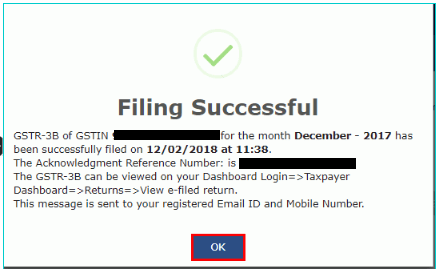
Step 9: On successful filing, the “Filing Successful” message will be displayed with the Acknowledgement Reference Number (ARN). Note the ARN for future reference.
Step 10: You can check the return filing status clicking on Services > Returns > Returns Dashboard. Select the Financial Year and return filing period and click “Search”. All the relevant GSTR forms will be displayed along with their filing status.
| Type | Applicable Taxpayers | Frequency and Due Date |
|---|---|---|
| GSTR-1 | All registered and casual taxpayers except:
|
Turnover < Rs. 1.5 crore - Quarterly , 31st of the month succeeding the quarter
Turnover > Rs. 1.5 crore - Monthly , 11th of the succeeding month |
| GSTR-2 | Suspended | Monthly , 15th of the succeeding month |
| GSTR-3 | Suspended | Monthly , 20th of the succeeding month |
| GSTR-3B | All registered taxpayers except-
|
Monthly , 20th of the succeeding month |
| CMP-08
(Earlier GSTR-4) |
Composition Taxpayers | Quarterly , 18th of the month succeeding the quarter |
| GSTR-5
(for non-resident taxpayers) |
Non-resident taxpayers who do not wish to claim ITC | Monthly , 20th of the succeeding month |
| GSTR-5A | Online Information and Database Access or Retrieval (OIDAR) service providers | Monthly , 20th of the succeeding month |
| GSTR-6 | Input Service Distributors | Monthly , 13th of the succeeding month |
| GSTR-7 | Authorized TDS deductors as per Section 51 of CGST Act | Monthly , 10th of the succeeding month |
| GSTR-8 | Registered e-commerce operators who collect TCS | Monthly , 10th of the succeeding month |
| GSTR-9 | All normal taxpayers, including SEZ unit/developer, OIDAR service providers. Except-
|
Annually , 30th November’19 for FY 2017-18 |
| GSTR-9A | Composition Taxpayers | Annually , 30th November’19 for FY 2017-18 |
| GSTR-10
(Final Return) |
Taxpayers whose GST registration has been canceled or surrendered | Once , 3 months from the date of cancellation or order of cancellation, whichever is later |
| GSTR-11 | Taxpayers with Unique Identification Number (UIN) | Quarterly , not mandatory for UIN holders who did not receive any inward supplies during the quarter.
28th of the next month when refund statement is filed |
Also read about the purpose of various GST Return Forms and the associated Late Filing Penalties by clicking here.

Choose from 30+ Partner Banks/NBFCs

Pick from Secured & Unsecured Options

Get Working Capital & Top-Up Loan Solutions

Flexible Tenure of Up to 4 years

10 Smart Business Loan Repayment Tips for MSMEs


How to Apply for PMEGP Loan Scheme?

Working Capital Loan vs Business Loan: Differences, Benefits & Usage

GST Business Loan

25 Best Business Ideas for Ladies Sitting at Home in India 2026

Factors Affecting Business Loan EMI

Unsecured Business Loans: Lenders Notice More Than Just Your Credit Score


Secured vs. Unsecured Business Loans: Which One Should You Choose?

How to Choose the Right Business Loan
MSME – Its Meaning, Classification, Loan Schemes, Role and Importance in India

Paisabazaar is a loan aggregator and is authorized to provide services on behalf of its partners
*Applicable for selected customers


Get up to ₹1 Cr starting at 13%*
Get up to ₹1 Cr starting at 13%*