Download the
Paisabazaar app Today!
Paisabazaar app Today!
Get instant access to loans, credit cards, and financial tools — all in one place

Win Assured Cashback

Our Advisors are available 7 days a week, 9:30 am - 6:30 pm to assist you with the best offers or help resolve any queries.


Get instant access to loans, credit cards, and financial tools — all in one place

Scan to download on



 Personal Loan
 Business Loan
 Home Loan
 Other Loans


Our Advisors are available 7 days a week, 9:30 am - 6:30 pm to assist you with the best offers or help resolve any queries.
600 or 750? What's your credit
score? Check for FREE.


Let’s Get Started
 +91
+91
The entered number doesn't seem to be correct
Note: The information on this page may not be updated. For latest information, click here.
UPDATE: As per 39th GST Council Meeting, filing of GSTR-9C for FY 2018-19 has been made optional for MSMEs with an aggregate turnover of less than Rs. 5 crore.
One of the key changes with the introduction of the GST regime is the introduction of specific GST Return Forms. One of these is the annual GST return form – GSTR 9.
In the following sections some key aspects of the GSTR-9 form will be discussed:
Table of Contents :
GSTR-9 is an annual return form that should be filed by GST registered taxpayers. Key details of purchases, sales, input tax credit, refund claimed or demand created etc. are mentioned in this Annual GST Return Form.
UPDATE: As per 37th GST Council Meeting, GSTR-9 has been made optional for taxpayers with an aggregate turnover of up to Rs. 2 crore for FY 2017-18 and FY 2018-19.
Following is the list of taxpayers, who are required to file GSTR-9 as per current Goods and Service Tax rules in India*:
*Subject to annual aggregate turnover criteria mentioned above.
However, there are a few exceptions to this rule. These are some key GST-registered entities that do not mandatorily need to file GSTR 9:
Note: Composition Taxpayers are required to file GSTR 9A instead of GSTR 9.
GST Expert Assistance by PaisabazaarFinding it difficult to avail online services related to GST? Paisabazaar’s offline stores provide expert assistance for GST services. Get step-by-step expert guidance for GST registration, GST filing and GST certificate. Once your GST is set up, you can apply for a business loan to scale your business through Paisabazaar. |
| Comparison Criteria | GSTR 9 | GSTR9A | GSTR-9C |
| Who files it? | All Normal Taxpayers registered under GST | Composition Taxpayers registered under GST | GST Registered taxpayers with an annual turnover of more than Rs. 5 crore during the applicable FY |
| Audit Requirement | No | No | Yes |
Note: Those who are required to file GSTR9C, that is have to get their accounts audited by a Chartered Accountant or Cost Accountant, need to submit a copy of audited annual accounts and reconciliation statement.
Check GST Calendar to stay update with the due dates of all the GST Return Forms.
UPDATE: As per CBIC Press Release dated 14th November’19, the last date to file GSTR 9 (Annual Return) and GSTR 9C (Reconciliation Statement) for FY 2017-18 has been extended to 31st December, 2019.
Additionally, the last date for filing of GSTR 9 and GSTR 9C for FY 2018-19 has been extended to 31st March, 2019.

Get FREE Credit Report from Multiple Credit Bureaus Check Now
GSTR-9 is divided into the following parts:
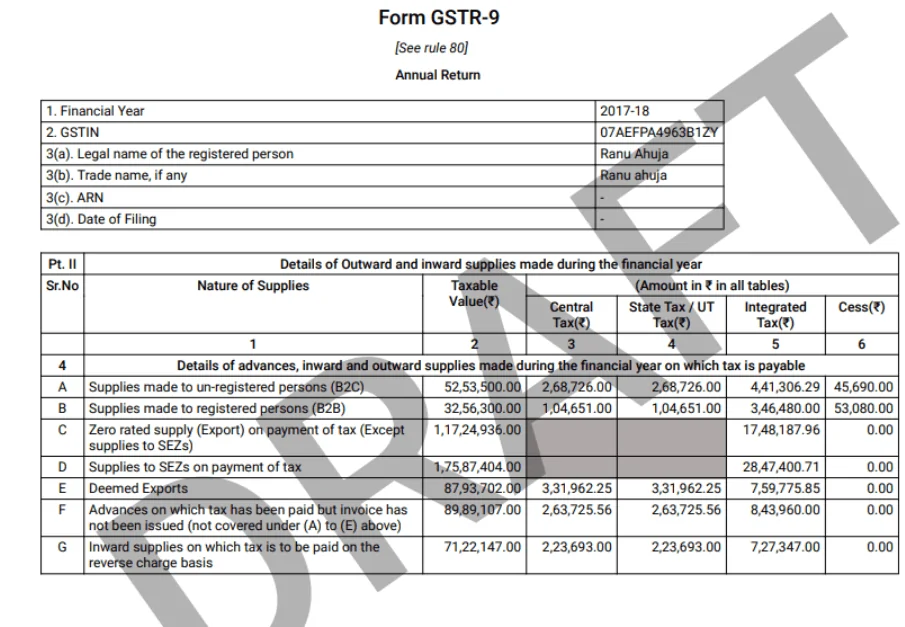
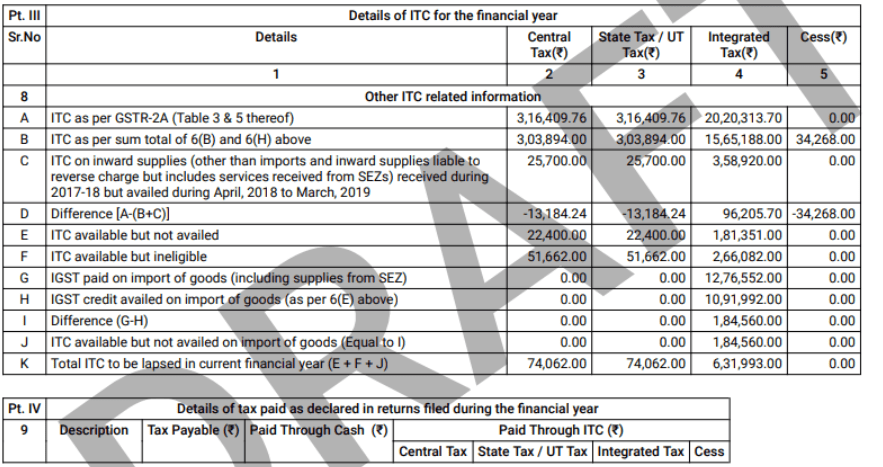
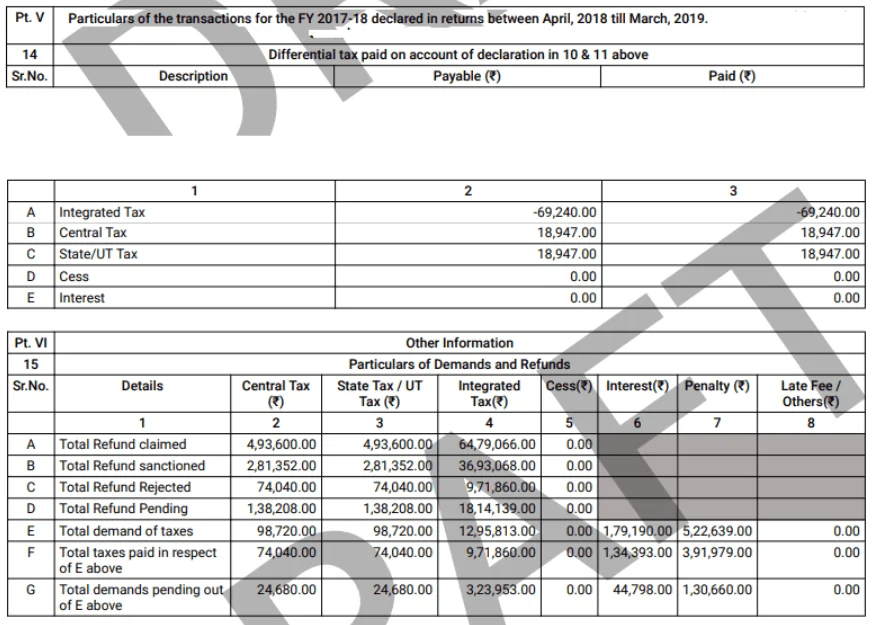
Step 1: Login into the GST portal with your credentials.
Step 2: Click Services > Returns > Annual Return.

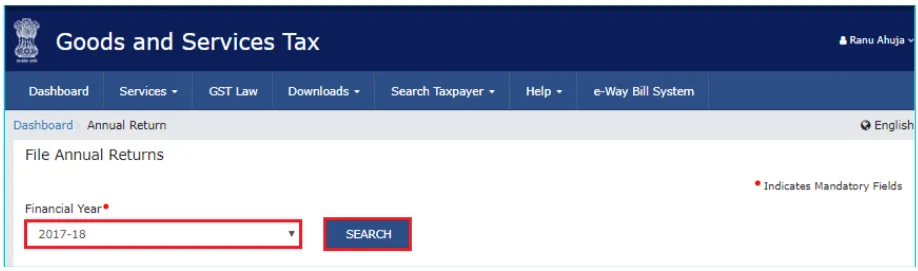
Step 3: Subsequently, the “File Annual Returns” page is displayed. Select the Financial Year for which you want to file the return and click “Search”.
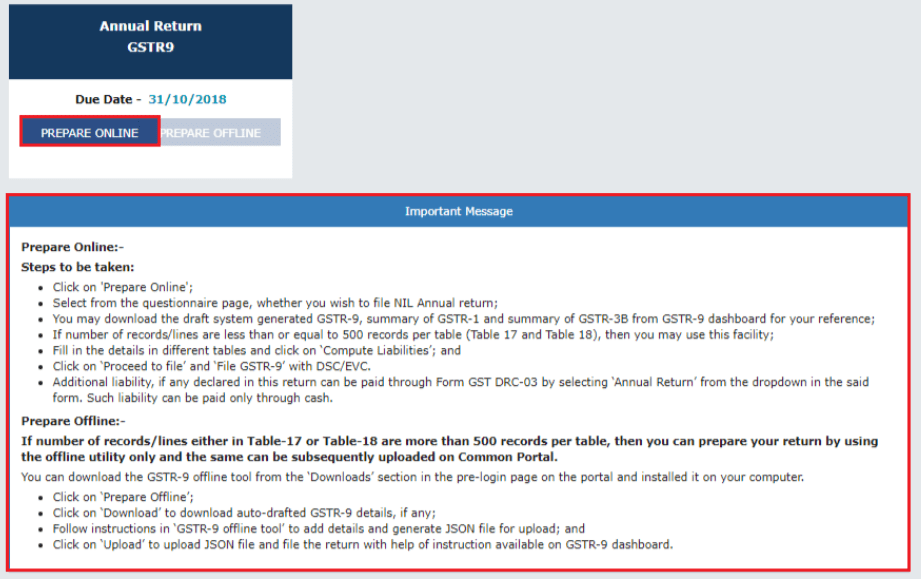
 Step 4: Read the “Important Message” displayed and click “Prepare Online” in the GSTR 9 tile.
 Step 5: The following question will appear. Select “Yes” if you want to file “Nil return”, otherwise select “No” and click “Next”.
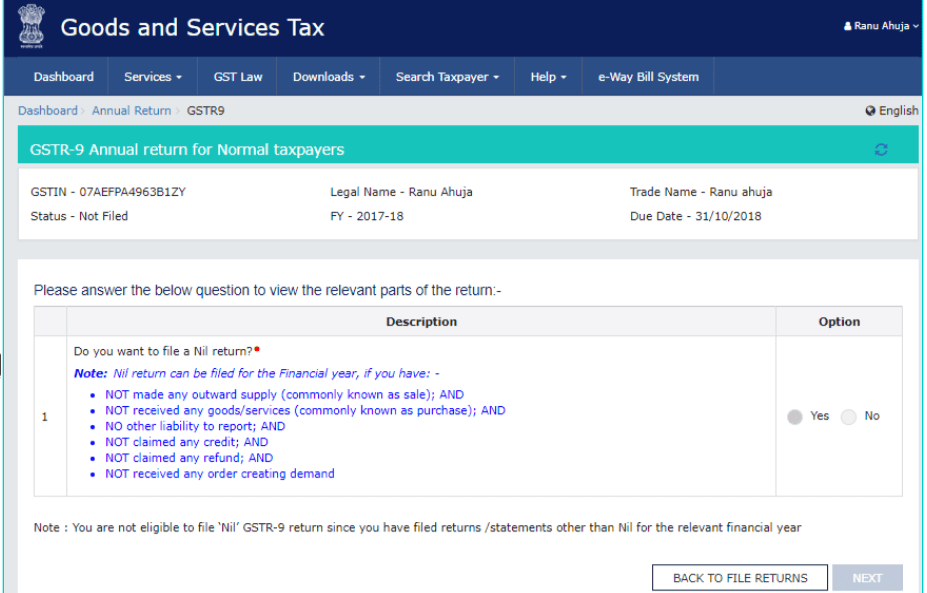
Step 6: If you selected “Yes” and want to file Nil return, click Next > Compute Liabilities and proceed to File the annual return with DSC/EVC (Digital Signature Certificate/ Electronic Verification Code).
Step 7: In case you selected “No”, the following GSTR-9 “Annual Return for Normal Taxpayers” page will be displayed as shown below:
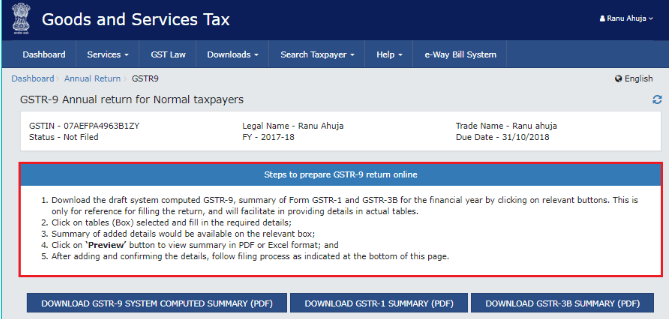
Step 8: Download system-computed GSTR 9 Summary, GSTR 1 Summary or GSTR 3B Summary by clicking on the relevant buttons. Please note that these files are only for reference and will help you fill out key details in the subsequent sections of the annual return form.
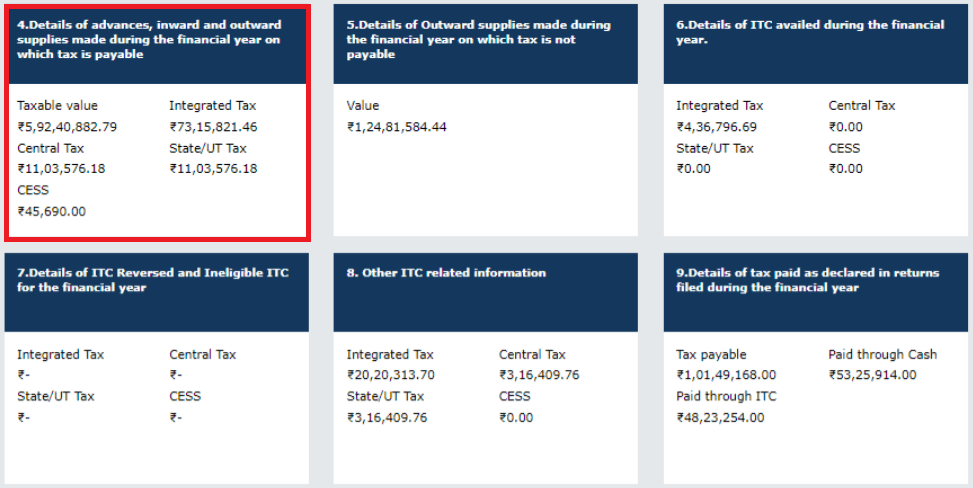
Step 9: Scroll down and click on each section to fill out the relevant updated details. Summary of added details will also be visible in the relevant boxes/tables.
Step 10: Further scroll down and click on “Preview” button to view GSTR 9 summary in PDF or Excel format. Make sure that the details provided in the annual GST return are correct.
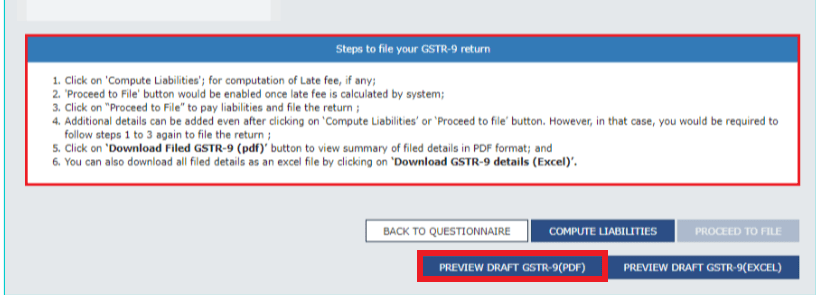
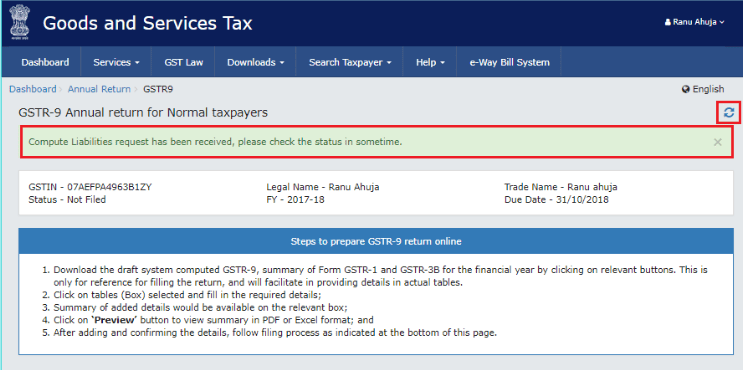
Step 11: Click “Compute Liabilities” so that the system can calculate late fees, if any. A message is displayed on top of the page indicating that the request to compute liabilities has been received. Click the Refresh button.
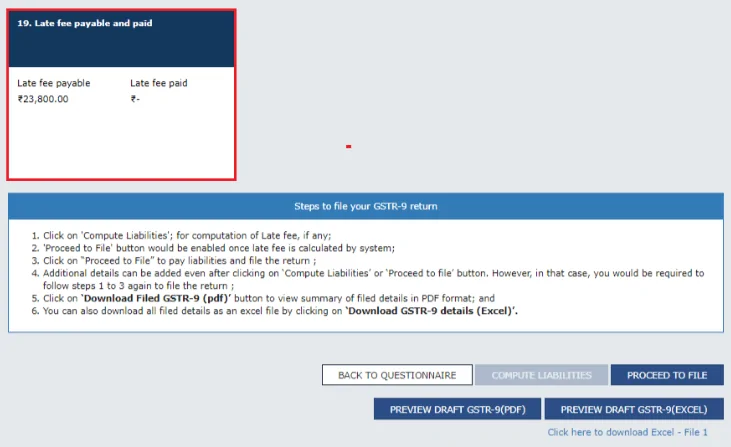
Step 12: Once the liabilities are calculated, Tile number 19 titled “Late fee payable and paid” is displayed as shown below:
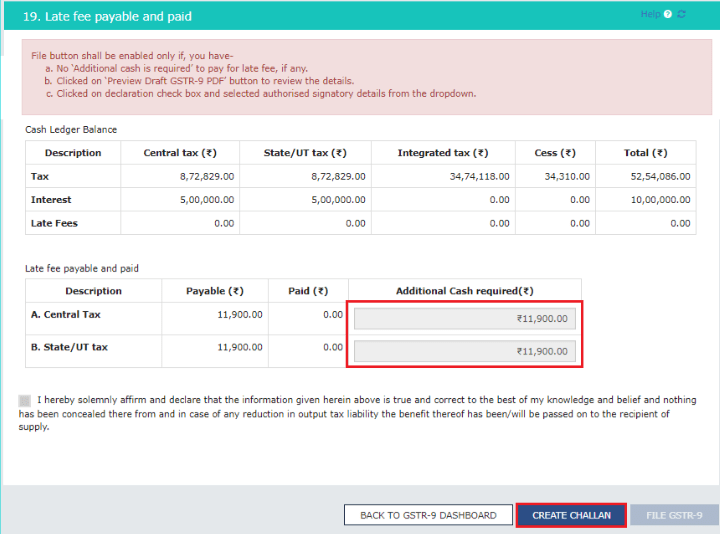
Step 13: Subsequently, the late fees paid and payable page is displayed. Additionally, available cash balance as on date is shown in Electronic Cash Ledger Balance.
Step 14: If available, cash balance in the electronic cash ledger is less than the tax liability, it will be reflected in the “Additional Cash required” column. In this case, click “Create Challan”.
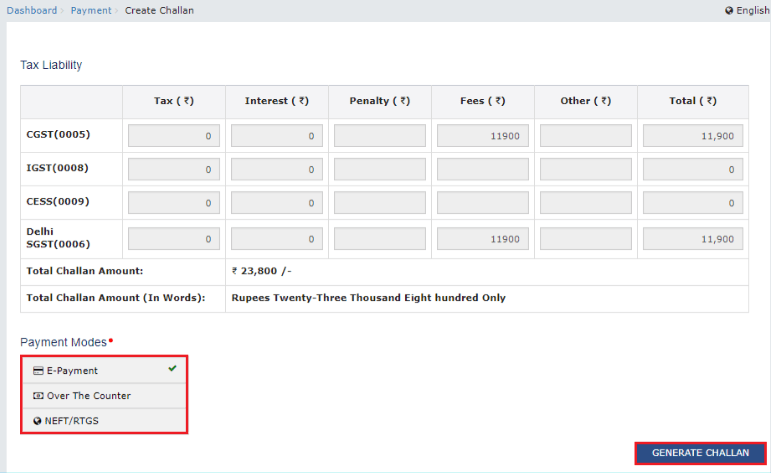
Step 15: “Create Challan” page is displayed. The total challan amount will be auto populated, which you cannot edit on this page. Select the suitable Payment mode and click “Generate Challan”.
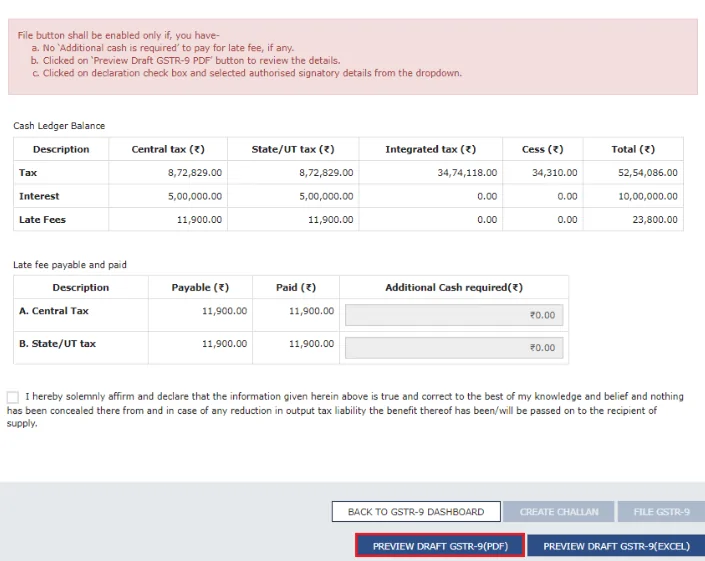
Step 16: After generating the challan, click the “PREVIEW DRAFT GSTR-9 (PDF)” to download Form GSTR-9 in PDF format. Please note that you can make changes in GSTR 9, if needed, after review.
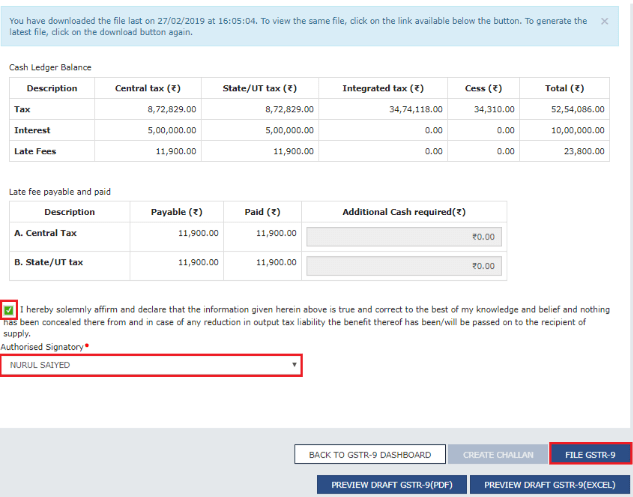
Step 17: Select the Declaration checkbox, the Authorized Signatory and click “File GSTR-9” button.
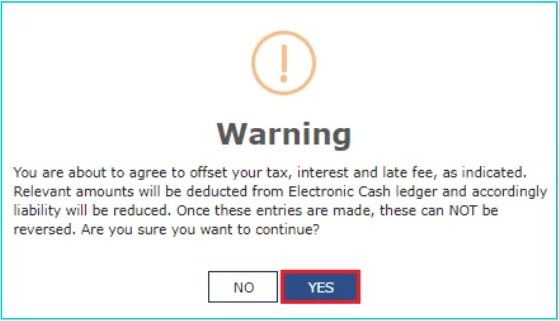
Step 18: Subsequently, the following warning page will be displayed. Click “Yes”.
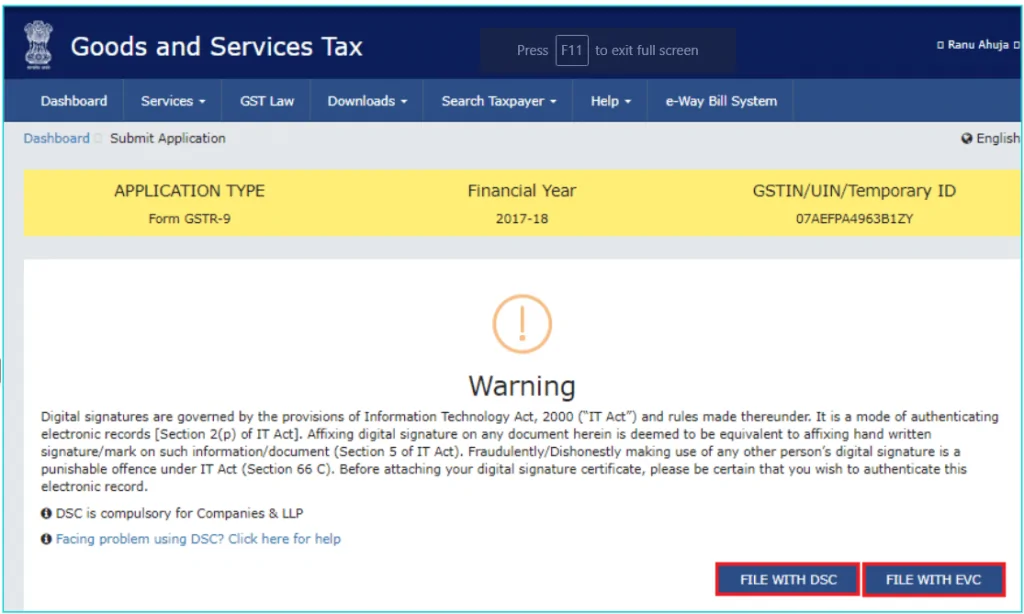
Step 19: Next the Submit Application Page will be displayed. Click “File with DSC” or “File with EVC” button. DSC stands for Digital Signature Certificate while EVC stands for Electronic Verification Code. Using DSC or EVC ensures the authentication of the filing.
Step 20: The following success message is displayed along with Acknowledgement Reference Number (ARN). Also, status of GSTR 9 changes to “Filed”.
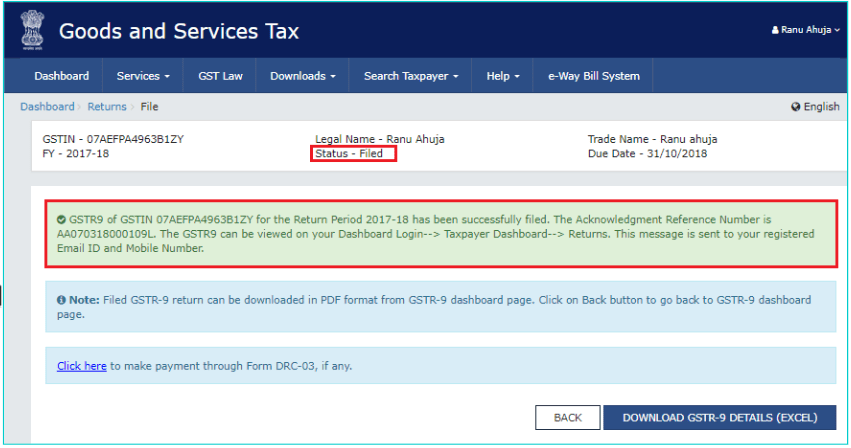
You will receive an SMS and an email on your registered mobile number and email ID upon successful filing of GSTR-9.
Get FREE Credit Report from Multiple Credit Bureaus Check Now
While the filing of GSTR-9 form is an online process, you can prepare the return offline using the appropriate GST Offline Tool. The following are the key steps for filing GST Return 9 form offline:
Step 1: Click the “Downloads” tab on the GST portal.
Step 2: Click Offline Tools > GSTR-9/ GSTR-9A/ GSTR-9C Offline Utility.
Step 3: Extract the excel utility of the GST offline tool from the zipped folder and open the excel file.
Step 4: Click “Enable Editing” button in the excel sheet to start the process of filling out your GSTR 9 form offline.
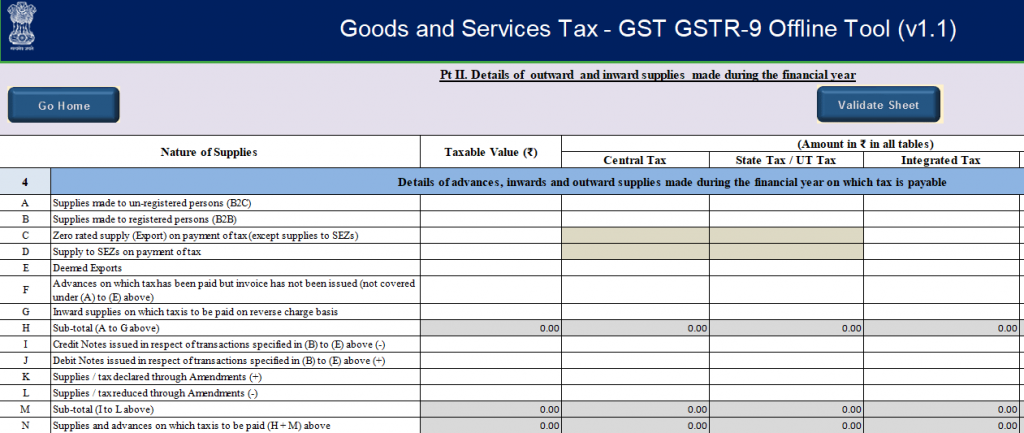
Step 5: Enter mandatory details including your GSTIN and the relevant FY. Subsequently, fill out the worksheets of the annual GST return form. Please note that it is not mandatory to fill data in all worksheets. The worksheet for which no details need to be declared can be left blank.
Step 6: Validate the entered details using the Validate button.
Step 7: Generate JSON file using the Generate file button.
Step 8: Upload the JSON file on the GST portal by selecting the “Prepare Offline” option on the returns dashboard.
Step 9: Preview the details uploaded and submit your offline prepared GST return on the GST portal.
Step 1: Login to the GST portal with your credentials.
Step 2: Click Services > Returns > Track Returns Status.

Step 3: You can check the GSTR status by providing details of ARN (Acknowledgement Reference Number) or the return filing period.
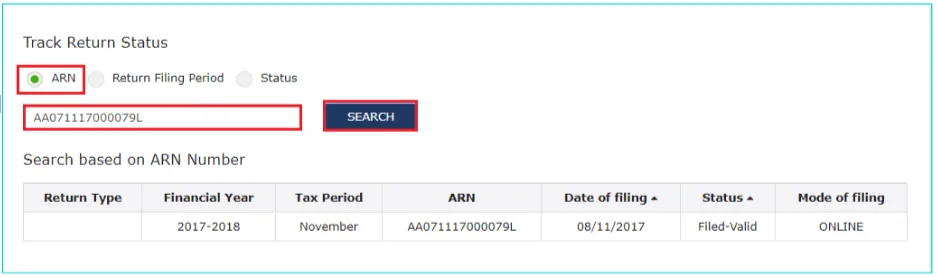
Step 4: Alternatively, you can track the GSTR status by selecting the status type from the drop-down menu. There are 4 types of Return Status,
| Act | Late filing fee/day |
| Central Goods and Services Act, 2017 | Rs. 100 |
| State Goods and Services Act, 2017 or Union Territory Goods and Services Act, 2017 | Rs. 100 |
| Total | Rs. 200 |
Note: The maximum amount late filing fee for each annual GST return (GSTR 9/ GSTR 9A/ GSTR 9C) cannot be more than 0.25% of the turnover.
Must Read: GST Penalties and Offences
Q1. What is GSTR-9?
GSTR-9 is an annual GST return form to be filed by all the normal taxpayers registered under GST. It includes details of purchases, sales, input tax credit, refund claimed and/or tax demand created.
Q2. Who needs to file GSTR-9?
This annual GST return form should be filed by:
Q3. Who need not file the annual GST return?
Following is the list of GST registered individuals and entities who need not file GSTR-9:
Q4. Who needs to file GSTR-9C?
GST Registered taxpayers with an annual turnover of more than Rs. 2 crore during the applicable FY are required to file GSTR-9C.
Q5. Who needs to file GSTR-9A?
Composition Taxpayers registered under GST are required to file this annual GST return.
Q6. What are the pre-conditions to file GSTR 9?
Following are two key pre-conditions for filing GSTR-9:
Q7. Can I revise GSTR-9 after filing?
No, you cannot revise GSTR-9 after filing.
Q8. Can I claim or report any unclaimed ITC through GSTR-9?
No, you cannot claim or report any unclaimed Input Tax Credit (ITC) through this annual return.
Q9. Is it mandatory to file GSTR-9?
Earlier it was mandatory for all the normal taxpayers to file GSTR9. However, it has been made optional for taxpayers with an aggregate turnover of up to Rs. 2 crore for FY 2017-18 and FY 2018-19.
Q10. What is the last date to file GSTR-9?
As per the latest CBIC notification, the last date to file GSTR-9 (Annual Return) and GSTR-9C (Reconciliation Statement) for FY 2017-18 has been extended to 31st December, 2019. Also, the last date for filing of GSTR 9 and GSTR 9C for FY 2018-19 has been extended to 31st March, 2019.